How to Enable Dark Mode on Safari iPhone
Staring at a bright white screen during late-night browsing is a common cause of eye strain. While Apple has integrated system-level dark themes into iOS, many users still find themselves blinded when opening web pages. If you are wondering exactly how to enable dark mode on Safari iPhone, this comprehensive guide will walk you through both native settings and advanced extension methods.
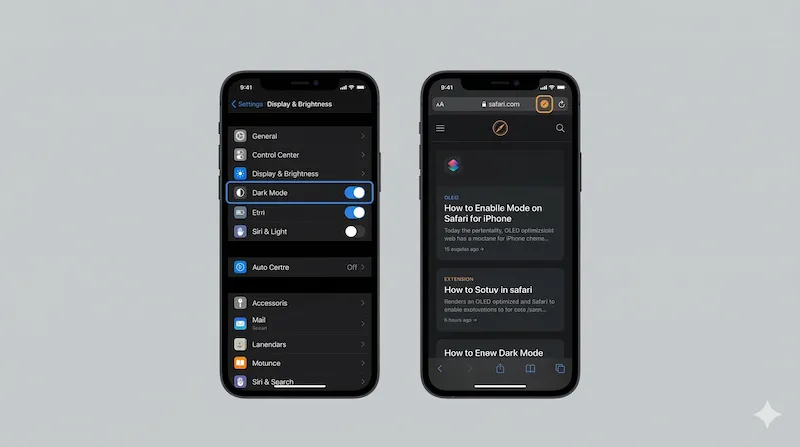
Turn on Dark Mode iOS Settings
The first step is to ensure your iPhone's operating system is utilizing the dark interface. This native setting adjusts the browser's UI elements, such as the address bar, bookmarks menu, and active tabs.
- Unlock your iPhone and open the Settings app.
- Scroll down and tap on Display & Brightness.
- Under the Appearance section, select Dark.
- Optional: Toggle on Automatic to schedule dark mode from sunset to sunrise.
Limitations of Native Safari Settings
| Browser Element | Native iOS Dark Mode Behavior |
|---|---|
| Address Bar & Menus | Turns dark grey or black. |
| Websites with Native Dark CSS | Automatically switches to dark theme. |
| Standard Websites (No Dark CSS) | Remains blindingly white. |
Force Dark Mode on All Websites Safari
As shown in the table above, the major flaw of the native iOS setting is that it cannot alter the background color of websites that have not explicitly coded a dark version. To solve this, you need a Safari dark mode extension that modifies the web page rendering in real-time.
Safari Dark Mode Extension iOS
Using a third-party extension like Noxri allows you to inject smart CSS overrides into every page you visit. This forces platforms like Wikipedia, Google Search, and older forums into a comfortable dark palette without breaking images or videos.
- Step 1: Download the extension from the App Store.
- Step 2: Open Safari, tap the
AAicon in the address bar. - Step 3: Select Manage Extensions and turn Noxri on.
- Step 4: Tap Always Allow to ensure it works automatically on all sites.
Does Dark Mode Save Battery iPhone?
Yes, but it depends on your device's screen technology. If you are using an iPhone with an OLED display (iPhone X and newer Pro/standard models), dark mode is highly beneficial for device longevity.
"OLED displays work by passing electrical current through organic compounds to light up individual pixels. If a pixel is black, it is simply turned off, which means it draws zero power from the battery."
Battery Consumption Comparison
| Screen Brightness Level | Light Mode Power Draw | Dark Mode Power Draw | Estimated Battery Saved |
|---|---|---|---|
| 30% (Indoor lighting) | Moderate | Low | ~10% to 15% |
| 50% (Standard) | High | Moderate | ~15% to 20% |
| 100% (Direct sunlight) | Very High | Moderate | Up to 30% |
By forcing the web to render in dark colors, you are maximizing the number of deactivated OLED pixels on your screen, thereby extending your daily battery life.
References
- Apple Support. (2024). Use Dark Mode on your iPhone and iPad.
- Purdue University Research. (2021). Dark mode battery consumption study on OLED smartphones.