Safari Dark Mode Not Working on Some Websites
It can be extremely frustrating to enable iOS system-wide dark mode, only to open Safari and be greeted by a blinding white webpage. If you are experiencing Safari dark mode not working on some websites, you are not alone. This is a common issue resulting from the fundamental way web browsers handle color schemes.
This troubleshooting guide explains why this happens and provides definitive solutions to achieve a consistent dark browsing experience on your iPhone or iPad.
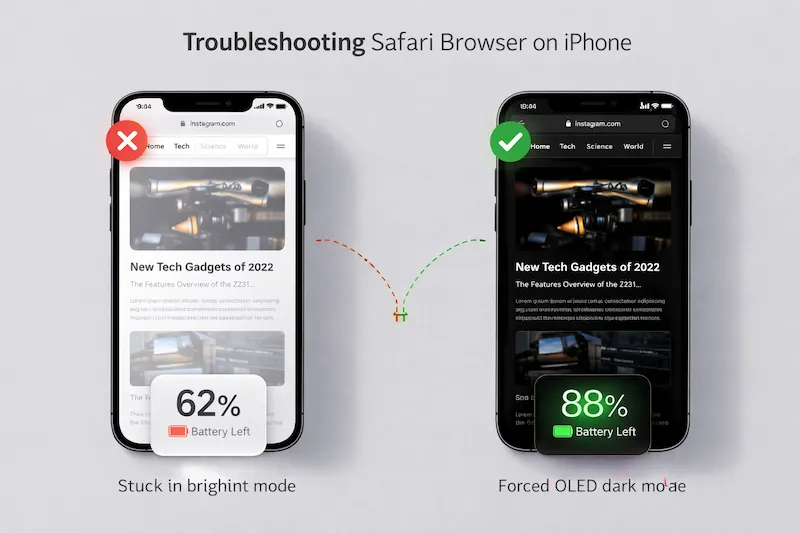
Why Native Safari Dark Mode Fails
To fix the issue, you must first understand the root cause. Native Safari dark mode, introduced in iOS 13, is designed to be reactive, not proactive. It changes Safari's toolbars and menus to black, and it signals to websites that you prefer a dark theme.
Crucially, Safari relies on website developers to include specific code (called prefers-color-scheme) to serve a dark version of their site. If a developer has not created a dark theme for their website, Safari will not alter the content, leaving you with a white background.
| Scenario | Native Safari Behavior | Result on Content |
|---|---|---|
| iOS set to Dark Mode | Tools and Menus turn black | Changes UI only |
| Website has built-in Dark CSS | Safari detects preference | Website turns dark |
| Website lacks Dark CSS | Safari sends signal, nothing happens | Website stays white |
Force Dark Mode Safari on All Websites
Standard troubleshooting steps like clearing the Safari cache or restarting your iPhone will not solve this particular problem. The only definitive solution is to bypass the website's default instructions and force a dark palette.
You can do this by installing a specialized Safari dark mode extension from the App Store. Extensions are capable of analyzing a webpage's CSS in real-time and modifying the color values of the background, text, and interactive elements.
"Native dark mode is purely optional for web developers. To achieve 100% consistency across the entire web, users must utilize on-device rendering extensions that proactively inject dark stylesheets."
How to Use a Safari Dark Mode Extension iOS
If you want to move beyond passive settings and actively fix broken dark modes on your iPhone, follow these steps to implement a forceful solution.
- Download the Noxri app from the App Store.
- Launch the Safari browser. Tap the 'AA' or puzzle icon in the URL search bar.
- Select Manage Extensions.
- Toggle Noxri to ON. Set permissions to "Always Allow" for all websites.
Once activated, the extension intelligently renders any website you visit, immediately resolving the "not working" issue on unsupported sites.
| Rendering Method | Compatibility | Visual Quality |
|---|---|---|
| Native Preference Detection | Low (< 20% of web) | Excellent (Developer Designed) |
| Simple Color Inversion (Legacy) | High (All Sites) | Poor (distorts images) |
| Hybrid Smart Rendering (Noxri) | High (All Sites) | High (optimizes images & text) |
By shifting from passive detection to active smart rendering, you permanently solve the issue of Safari dark mode failing on older or unsupported webpages, ensuring eye comfort during late-night browsing.
Medical & Technical References
- World Wide Web Consortium (W3C). (2025). CSS Color Adjustment Module Level 1.
- University of California, Irvine. (2024). UCI Health: Is dark mode better for your eyes?.